Caching is one of the most effective ways to improve your website's performance. Falcon's cache feature creates static HTML files of your pages, serving them instantly to visitors without processing database queries, or loading WordPress, themes and all plugins on every request.
The cache settings are available in the General tab on the Falcon settings page.
How it works
Falcon creates a cache folder inside wp-content/uploads, where each page is stored as an HTML file.
When a visitor requests a page:
- Falcon checks if a cached version exists
- If found, it serves the cached HTML file immediately and stops further processing
- If not found, it captures the page's HTML, saves it to the cache folder, and serves it to the visitor
The cache is automatically cleared whenever content changes on your website, including:
- Adding, editing, deleting, or updating posts, pages, terms, or comments
- Changing themes
- Activating or deactivating plugins
- Editing templates in the editor
- Changing widgets or menus
- Updating WordPress
What doesn't get cached
Falcon intelligently skips caching for:
- Search result & 404 error pages
- Password-protected posts
- Logged-in users
- AJAX, REST API, XML-RPC requests
- Non-GET requests (POST, PUT, etc.)
- Requests with active sessions
This ensures that dynamic content, user-specific content, and interactive features work correctly while still caching static pages for maximum performance.
Performance benefits
Caching dramatically improves page load times because:
- No PHP processing: Cached pages are served as static HTML files
- No database queries: WordPress doesn't need to query the database
- Reduced server load: Your server handles cached requests with minimal resources
- Faster response times: Static files are served almost instantly
This is especially beneficial for sites with high traffic, as cached pages can be served to thousands of visitors without additional server processing.
Technical details
When you enable caching, Falcon:
- Adds the
WP_CACHEconstant to yourwp-config.phpfile. So make sure this file is writable by the web server. - Creates the cache directory in
wp-content/uploads/cache - Creates
wp-content/advanced-cache.phpwhich handles cache serving. So make sure the web server can create this file.
If Falcon can't complete these steps, the cache functionality won't work, but it doesn't cause any error. Your site still works as usual.
How to check if a page is cached?
To check whether a page is cached, check the response header. If a page is cached, you'll see a header like this:
X-Cache: HITYou can inspect this header by pressing F12 when viewing a page to show the browser's developer tools, then switch to the Network tab, and click the request to the page to see response headers.
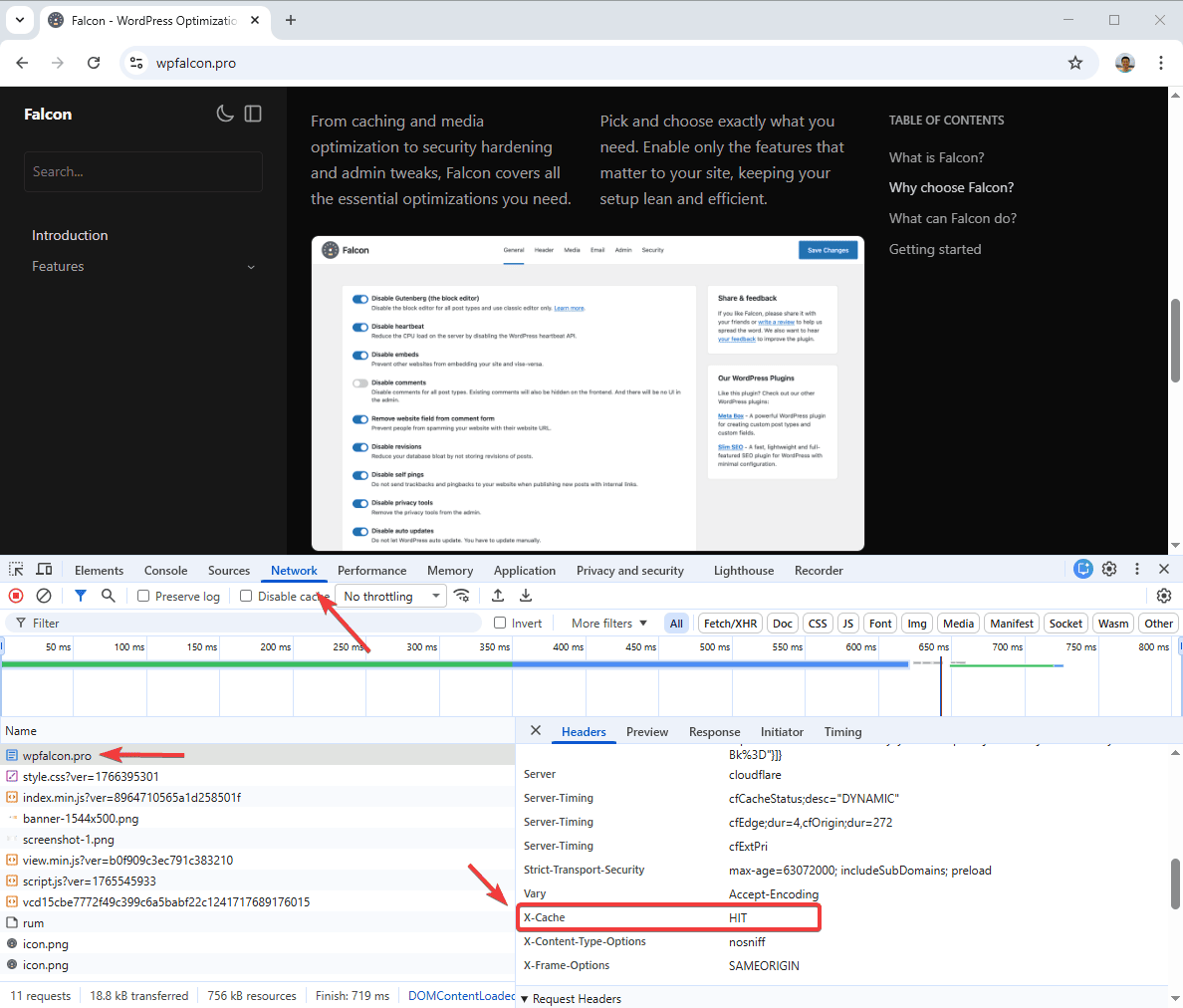
If you don't see the X-Cache header, or it has another value (usually MISS), then the page is not cached.
When to use Falcon's cache?
Cache is ideal for:
- Content-heavy sites (blogs, news sites, portfolios)
- Sites with high traffic
- Sites hosted on shared hosting with limited resources
- Sites where content doesn't change frequently
Cache may not be as beneficial for:
- Highly dynamic sites with user-specific content
- E-commerce sites with constantly changing inventory
- Sites that already use other caching solutions (object cache, page cache plugins)
Important notes
- Cache is automatically cleared when content changes, so you don't need to manually clear it
- Logged-in users always see fresh content (cache is bypassed for them)
- The cache directory can grow large on high-traffic sites, but it's automatically managed
- If you need to manually clear cache, you can delete the
wp-content/uploads/cachefolder
Because caching can affect how your site behaves (especially with dynamic features), this feature is disabled by default. Enable it when you're ready to benefit from improved performance.