WordPress comes with many built-in features and components that are enabled by default. While these features are useful for many websites, you might not need all of them. Some can slow down your site, consume server resources, or simply add clutter to your admin interface.
Falcon allows you to turn off specific WordPress features that you don't need. This can improve performance, reduce database bloat, simplify your admin experience, and give you more control over your website.
Think of it as decluttering your WordPress installation - removing the things you don't use to make your site leaner and faster!
General components
The settings for general components are available in the General tab on the Falcon settings page:
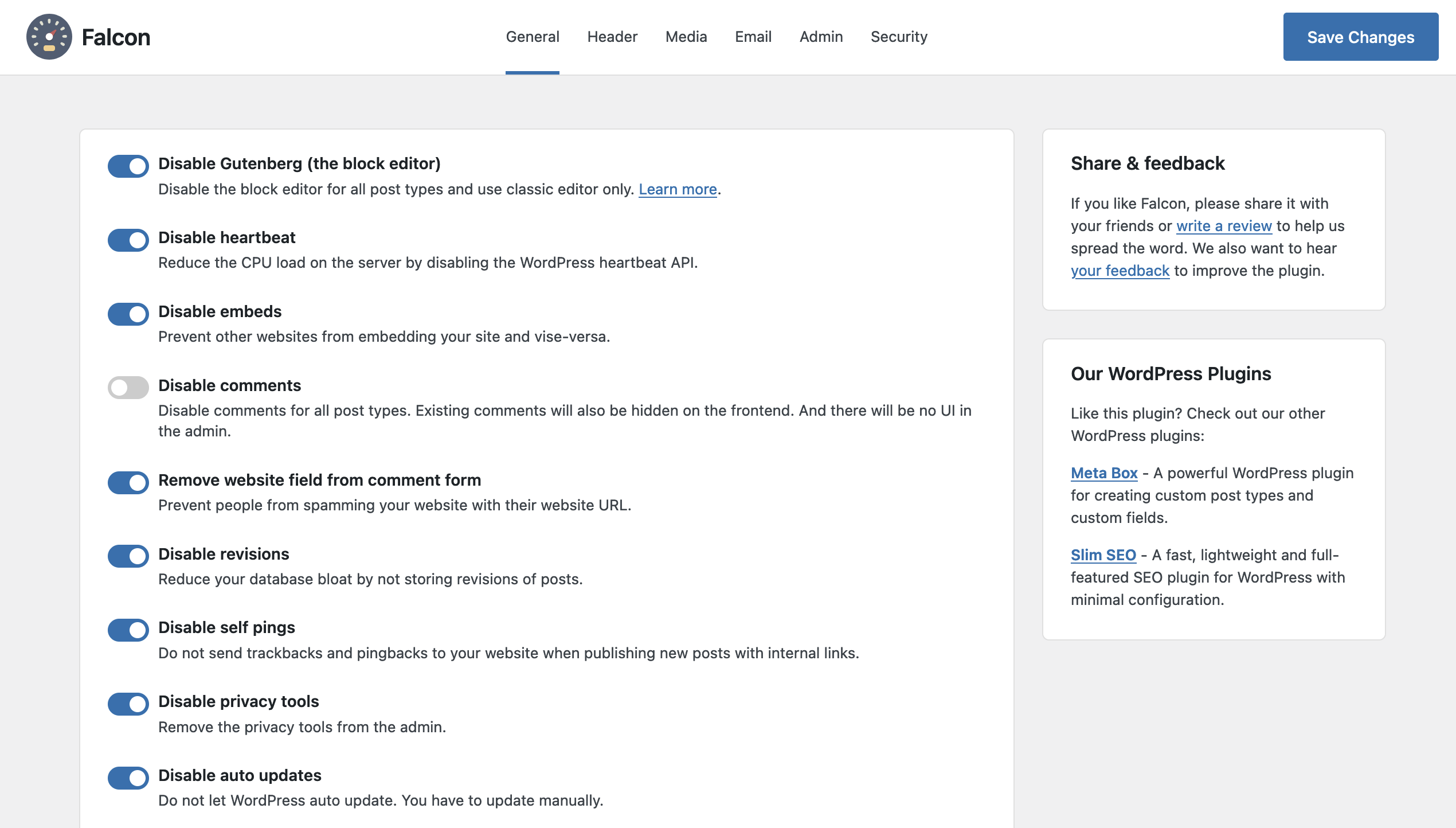
Disable Gutenberg (the block editor)
If you prefer the classic editor or use a page builder and don't need Gutenberg, disabling it will remove the block editor for all post types and eliminate extra CSS and JavaScript from your frontend. This reduces page size and gives you a simpler editing experience. The feature also disables the block-based widget editor and removes global styles, making your site lighter.
However, the block editor is the default editor in WordPress and it's getting better and better. People are getting used to it and some love it. For this reason, this feature is not enabled by default.
Disable heartbeat
WordPress Heartbeat API sends periodic requests to the server every 15-60 seconds for auto-save, update checks, and collaboration features. This can significantly increase server load, especially on shared hosting or sites with many logged-in users. Disabling heartbeat reduces CPU usage and improves performance, though you'll lose auto-save functionality and real-time collaboration features. This is one of the most impactful performance optimizations you can make.
Disable embeds
WordPress oEmbed functionality allows embedding content from other sites and lets others embed your content. If you don't use embedded content or want to prevent others from embedding your site, disabling embeds removes unnecessary JavaScript and reduces your attack surface. You can still manually embed content using iframes or shortcodes, but the automatic URL-to-embed conversion won't work.
Disable comments
If you don't need user interaction through comments or use external commenting systems like Disqus, disabling comments removes the entire comment system from your site. This includes comment feeds, widgets, admin menus, and hides existing comments on the frontend. It reduces database size, simplifies your admin interface, and is perfect for static sites or portfolios. Note that existing comments won't be deleted from the database but won't be visible.
However, comment is an important part of WordPress, and disabling it might be confusing for people. So, this feature is not enabled by default.
Relating to comments, Falcon also helps you to remove website field from the comment form, which is often used by spammers to promote their sites. Removing it reduces spam, simplifies the comment form, and prevents commenters from adding promotional links.
Disable revisions
WordPress automatically saves revisions (previous versions) of your posts, which can significantly bloat your database over time. Each revision is a full copy of the post, so sites with frequent updates can accumulate thousands of unnecessary database entries. Disabling revisions reduces database size, improves backup times, and speeds up database queries. However, you'll lose the ability to revert to previous versions, so consider this carefully if you rely on revision history.
Disable self pings
When you publish a post with links to other pages on your own site, WordPress automatically sends trackbacks/pingbacks to those pages. This creates unnecessary pingback notifications and database entries (stored as comments), cluttering your comment sections. Disabling self pings prevents these internal notifications while still allowing external pings if needed.
Disable privacy tools
WordPress includes privacy tools for GDPR compliance, including data export and erasure capabilities. If you don't need these compliance tools or handle privacy through other means, disabling them simplifies your admin interface by removing the privacy policy setup page and personal data tools from the admin menu. However, if you're required to comply with privacy regulations, you should keep these tools enabled.
Disable auto updates
Automatic updates help keep your site secure, but they can occasionally break functionality or conflict with custom code. If you manage websites on a server or VPS, or use server management tools, you may prefer to control updates yourself. Disabling automatic updates gives you full control over when updates are applied, allowing you to test them in a staging environment first. However, this also means you must stay on top of security updates, as running an outdated WordPress installation can pose serious security risks.
Disable cron
WordPress cron (WP-Cron) runs on every page load to check for scheduled tasks, which can slow down your site. If you have access to server-level cron (via cPanel, command line, or external service), disabling WP-Cron and using real cron instead provides more reliable scheduling and better performance. Real cron is more accurate and doesn't impact page load times.
However, disabling WP-Cron might prevent WordPress and some plugins from doing their regular jobs, like checking new versions or performing backups. For this reason, this feature is not enabled by default.
Important: If you disable WP-Cron, you must set up a real cron job to run wp-cron.php regularly (every 5-15 minutes), otherwise scheduled posts won't publish.
To setup a cron on your server, add this command to your server's crontab (run every 5 minutes)
*/5 * * * * wget -q -O - https://yoursite.com/wp-cron.php?doing_wp_cron >/dev/null 2>&1Block external requests
WordPress and plugins often make HTTP requests to external servers for updates, license checks, and API calls. Blocking external requests improves security by preventing data leakage, enhances performance by eliminating external request delays, and increases privacy by preventing WordPress from "phoning home". However, this is a very restrictive setting - many plugins and themes will stop working if they rely on external requests, or they won't be able to check for new versions.
For this reason, this feature is not enabled by default.
Disable texturize
WordPress automatically converts plain text characters into "smart" typographic characters (straight quotes to curly quotes, double hyphens to em dashes, etc.). In most cases, this is not a problem. In fact, it can help your content looks more beautifully. But in some rare cases, it causes some problem when copy and pasting code.
If you want precise control over typography, write code or technical content where character accuracy matters, or use custom typography plugins, disabling texturize gives you full control. All your text will be display as it is. No automatic change. Easy to copy and paste!
Media components
The settings for media components are available in the Media tab on the Falcon settings page:

Remove jQuery Migrate
jQuery Migrate is a compatibility layer that helps older jQuery code work with newer jQuery versions. Most modern themes and plugins don't need it, and it adds unnecessary JavaScript to your pages. Removing jQuery Migrate reduces your page size and improves load times, especially on mobile connections. Only disable this if you're certain your theme and plugins don't require it.
Disable emojis
WordPress automatically loads emoji detection scripts and styles, which adds unnecessary JavaScript and CSS to your pages. Disabling emojis removes these assets, reducing page size and improving load times, especially on mobile connections. This doesn't prevent you from using emoji characters in your content - modern browsers handle emojis natively. You just lose WordPress's automatic emoji conversion system.
Disable scaling down big images
WordPress automatically creates a scaled-down version of images larger than 2560px to save storage space. If you want to preserve full image quality (like for your paintings or portfolio), handle optimization manually, or use external image optimization services, disabling this feature prevents automatic scaling. However, this means WordPress won't create smaller versions of large images, which could increase storage usage.
Disable automatic image rotation
WordPress reads EXIF orientation data from photos and automatically rotates them to the correct orientation. If you want images exactly as uploaded, handle rotation manually, or have had issues with incorrect rotations, disabling this gives you full control. Note that modern cameras and phones often store images in a specific orientation and use EXIF data to indicate display orientation, so you may need to manually rotate images if disabled.
Disable thumbnail generation
WordPress automatically creates multiple image sizes (thumbnail, medium, large, etc.) when you upload an image. Disabling thumbnail generation can significantly reduce storage usage, especially on image-heavy sites where each uploaded image typically generates 3-5 additional files. This is useful if you only need the original image, generate thumbnails manually, or use a CDN that handles image resizing.
Warning: Many themes and plugins expect certain image sizes to exist, so disabling this may break your site's layout or cause missing images. Only disable if you're certain your theme/plugins don't need it. Because of this reason, this feature is disabled by default.
Best practices
Here are some recommendations from Falcon:
Safe to disable
- ✅ Disable heartbeat (if you don't need auto-save/collaboration)
- ✅ Disable revisions
- ✅ Disable self pings
- ✅ Disable emojis
- ✅ Remove website field from comment form
- ✅ Disable texturize
Use with caution
- ⚠️ Disable comments (only if you truly don't need them)
- ⚠️ Disable Gutenberg (only if you use classic editor)
- ⚠️ Disable thumbnails (may break themes/plugins)
- ⚠️ Disable cron (requires real cron setup)
Advanced/expert only
- 🔴 Block external requests (breaks many plugins)
- 🔴 Disable auto updates (requires manual security updates)
- 🔴 Disable privacy tools (may have legal implications)
Performance impact summary
Here's a quick reference for performance impact:
| Component | Performance Impact | Storage Impact |
|---|---|---|
| Heartbeat | 🔴 High (reduces server load) | - |
| Revisions | 🟡 Medium (reduces DB size) | 🟡 Medium |
| Thumbnails | 🟢 Low | 🔴 High (saves storage) |
| Emojis | 🟡 Medium (reduces assets) | - |
| Embeds | 🟡 Medium (reduces JS) | - |
| Gutenberg | 🟡 Medium (reduces CSS/JS) | - |
| External requests | 🟡 Medium (reduces delays) | - |
Troubleshooting
You need to set up a real cron job to run wp-cron.php. See the "Disable cron" section above for instructions.
Your theme likely requires specific image sizes. Re-enable thumbnail generation or check your theme's documentation for required image sizes.
Premium plugins often require external API calls for license verification. You'll need to disable this feature.
No. Once revisions are disabled and you've saved new changes, previous revisions are no longer accessible. Always test this feature on a staging site first.