The WordPress admin is powerful, but it also comes with notices, widgets, logos, and footer text that many people never use. On a busy site, that extra chrome makes the dashboard feel heavier than it needs to be.
The Admin options under Cleanup in Falcon tidy the back office so you can focus on content and settings that matter. These changes affect how the admin looks and feels - they do not change your public website.
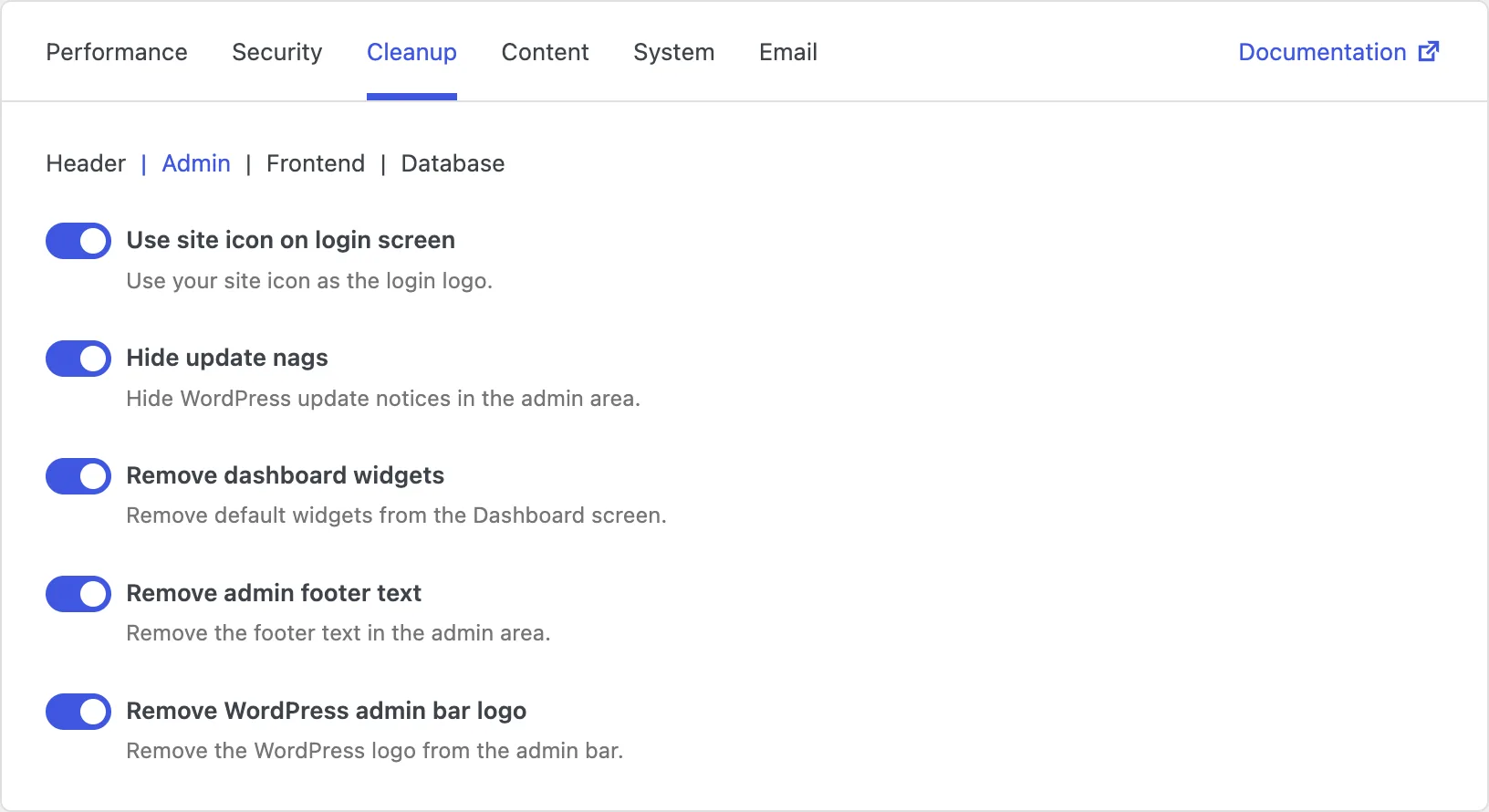
Use site icon on login screen
By default, the login page shows the WordPress logo. That is fine, but it does not feel like your site. If you have set a site icon (the small image used for browser tabs and bookmarks), Falcon can use it on the login screen instead.
The result is a more branded login experience for you and your team, without installing a separate login-customizer plugin.
Hide update nags
WordPress shows update notices across the admin when core, plugins, or themes have newer versions. Those notices are important - but on sites managed by a developer or an update schedule, they can become constant visual noise for editors who should not handle updates themselves.
Hiding the nags gives a calmer admin screen. Just make sure someone is still responsible for keeping the site updated - this option hides the reminders, it does not apply the updates for you.
Remove dashboard widgets
The Dashboard screen ships with several default widgets: news, quick drafts, activity, and more. Some teams use them. Many others ignore them completely, while the widgets still load and take up space.
Removing the default widgets makes the Dashboard cleaner and often a bit faster to open. You can still use the rest of the admin as usual - this only clears the default boxes on that first screen.
Remove admin footer text
At the bottom of admin pages, WordPress shows thank-you text and version information. It is harmless, but it adds little value once you already know you are in WordPress.
Turning this off removes that footer line so admin pages feel a touch more focused and less like a stock install.
Remove WordPress admin bar logo
The black admin bar at the top includes a WordPress logo menu with links to wordpress.org and related resources. Useful for newcomers; often unused once you know your way around.
Removing the logo menu simplifies the admin bar and leaves more room for the links you actually click every day.