The editor is where you spend most of your time in WordPress. Small defaults - which editor you use, whether every save creates a revision, whether quotes are rewritten automatically - add up over months of publishing.
The Editor options under Content in Falcon let you shape that writing experience so it matches how you actually work.
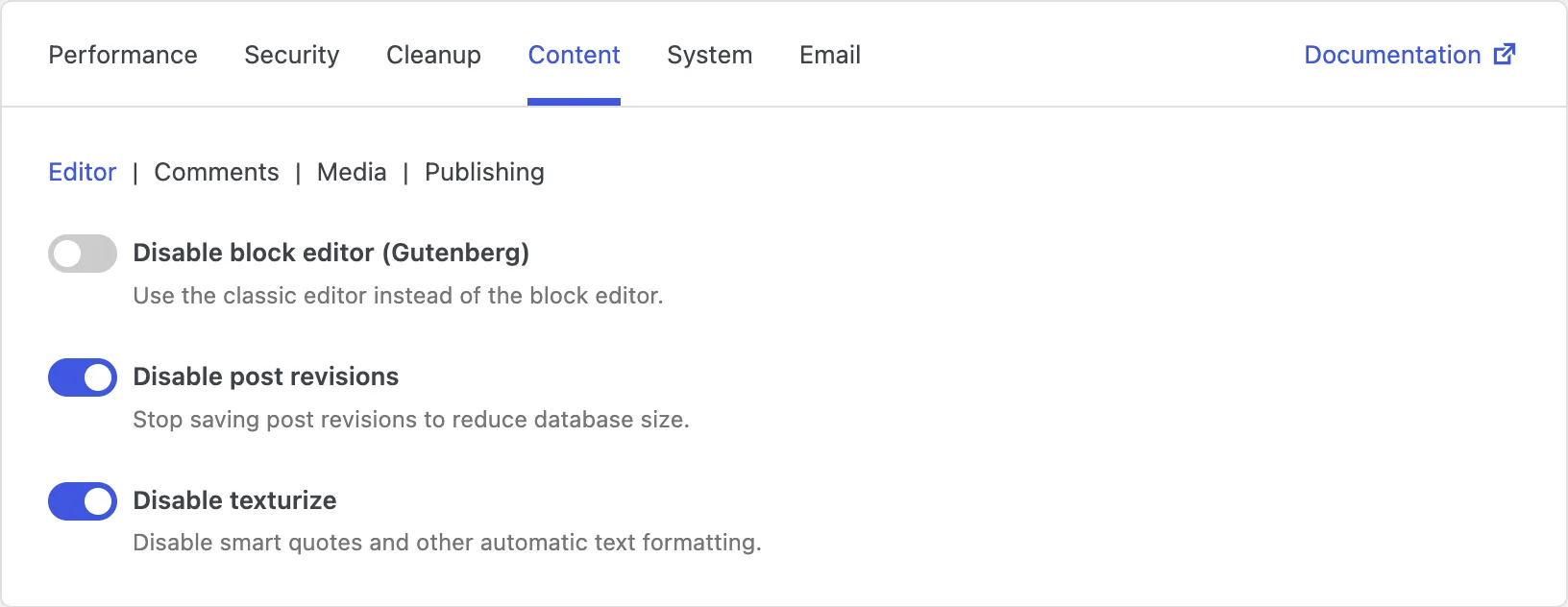
Disable block editor (Gutenberg)
The block editor is the modern WordPress writing screen, built around blocks for paragraphs, images, columns, and more. It is powerful, but some teams prefer the older classic editor: a simpler text box, fewer moving parts, and a workflow they already know.
Turning this on switches you back to the classic editor instead of the block editor. That can feel faster and clearer if you mainly write straightforward posts and pages.
Keep in mind that block-only layouts and block patterns will not be available while this is enabled. If your theme or content depends on blocks, leave the block editor on.
Disable post revisions
Each time you save a post or page, WordPress can store an older copy as a revision. That history is useful when you need to undo a bad edit - but on a busy site it also fills the database with copies you may never open again.
Disabling revisions tells WordPress to stop saving those extra copies going forward. New edits no longer create revision rows, which helps keep the database smaller over time.
You will not get a revision history for future saves, so this suits sites where rollback is rarely needed, or where you already keep drafts and backups another way. Existing revisions already in the database are not removed by this switch - use Cleanup → Database if you want to clear old ones.
Disable texturize
By default, WordPress "texturizes" content: straight quotes become curly quotes, and some other characters are rewritten to look typographically nicer. That is pleasant for prose, but it can break code snippets, product codes, measurements, or languages where those automatic changes are unwanted.
Disabling texturize keeps your text exactly as you typed it. What you enter in the editor is what visitors see - no silent character swaps.
This is especially helpful for technical blogs, documentation, catalogs, and any site where precision matters more than smart punctuation.