When someone visits your website, WordPress has to do a lot of work before the page appears: load plugins, talk to the database, build the layout, and send styles and scripts to the browser. The more work it does, the longer visitors wait - and the harder your server has to work.
The Performance tab in Falcon helps your site feel faster by reducing that work. Some options save a finished copy of a page so WordPress does not rebuild it every time. Others stop WordPress from loading small extras that most sites never need. You can turn each option on or off independently, so you only keep what helps your site.
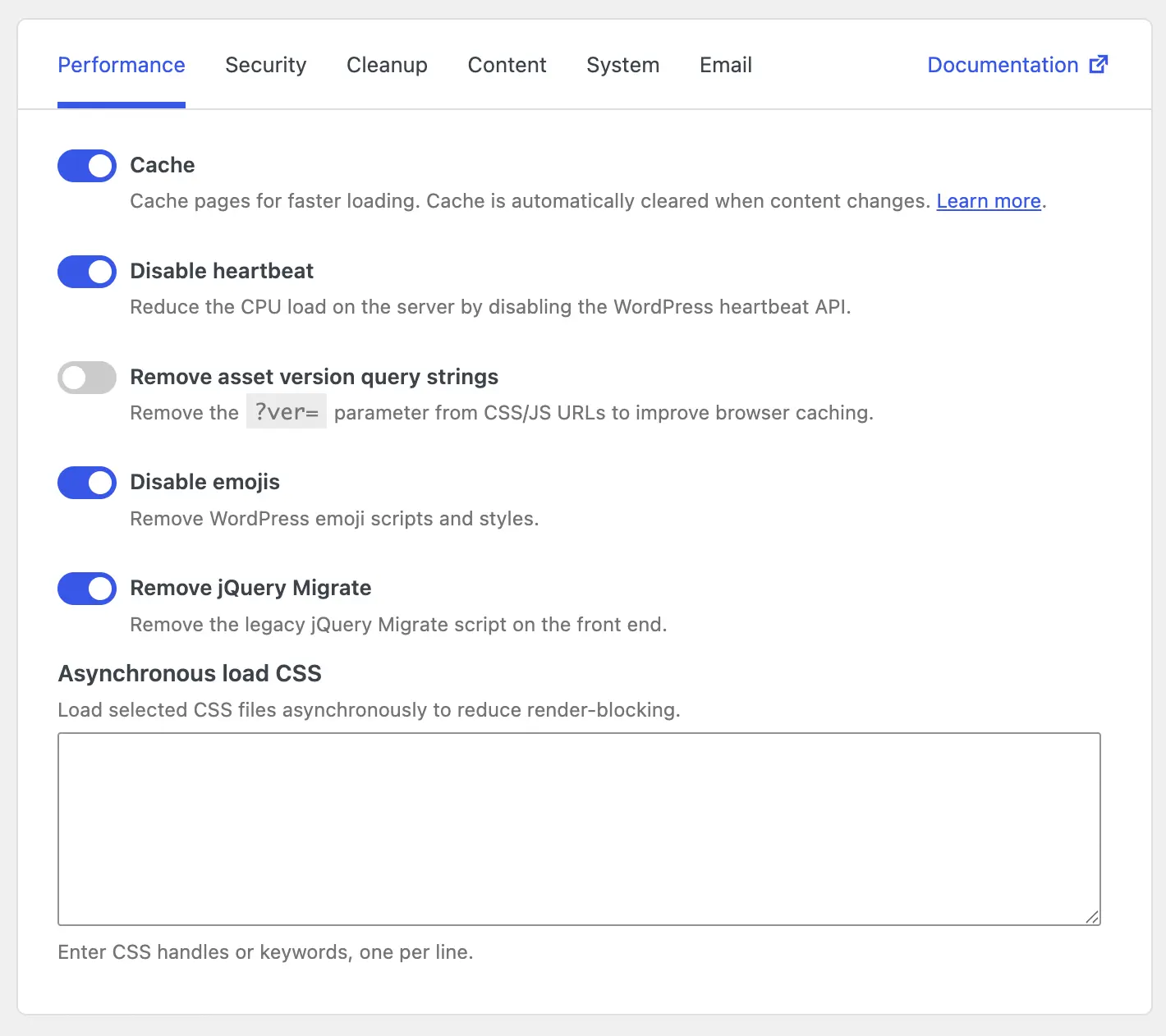
Cache
Normally, every visit to a page makes WordPress start from scratch: load the theme, run plugins, fetch content from the database, and put the page together. That is fine for a quiet site, but it becomes slow and expensive when many people visit at once.
Cache solves this by saving a ready-made copy of each page the first time it is viewed. The next visitors get that saved copy almost instantly, without WordPress rebuilding the page again. When you publish or update content, Falcon clears the old copies so visitors still see the latest version.
This is usually the biggest speed win in Falcon, especially for blogs, company sites, and other pages that look the same for most visitors. It is less useful for highly personal pages that change for every user. For a deeper walkthrough of how caching works, what is skipped, and how Cloudflare fits in, see the dedicated Cache page.
Disable heartbeat
While you are logged into WordPress, the admin area quietly "checks in" with the server every few seconds. WordPress uses this heartbeat for things like auto-saving drafts, warning you if someone else is editing the same post, and refreshing parts of the dashboard.
Those check-ins are useful, but they also create a steady stream of background requests. On shared hosting or busy sites, that constant chatter can make the admin feel sluggish and use more server resources than you expect.
Turning heartbeat off reduces that background load. Some live admin features may become less responsive - for example, auto-save and "someone else is editing" notices may not work as smoothly. If you mostly write alone and want a lighter admin, this option is often worth enabling.
Remove asset version query strings
Every page on your site loads style and script files that control how it looks and behaves. WordPress often adds a small version tag to those file addresses, like a note that says "this is version 6.4." That helps browsers know when a file has changed - but some caching systems treat those tagged addresses as unique every time, so they do not reuse files as well as they could.
Removing those version tags gives browsers and caching layers a cleaner address to remember. Visitors who return to your site are more likely to reuse files they already downloaded, which means fewer downloads and a snappier feel on repeat visits.
After a theme or plugin update, some visitors may briefly see an older cached file until their browser refreshes it. If you use a cache plugin or CDN, make sure you can clear cached files after major updates. For many sites, the speed benefit on everyday visits outweighs that occasional inconvenience.
Disable emojis
WordPress loads extra scripts and styles so emoji characters look consistent across older browsers. On modern sites, that extra work is rarely needed - phones and computers already display emojis well on their own.
Disabling emojis simply stops WordPress from loading those extra files. Your pages become a little lighter, and visitors download one less set of scripts they do not need. You can still type and display emojis in your content; this option only removes the WordPress helper files, not the emoji characters themselves.
Remove jQuery Migrate
jQuery is a common JavaScript library used by many themes and plugins. jQuery Migrate is an older helper file that keeps outdated scripts working with newer versions of jQuery. WordPress still loads it by default for compatibility with older code.
If your theme and plugins are reasonably up to date, that helper file is often unused baggage. Removing it means visitors download less JavaScript, which can make pages feel a bit lighter - especially on mobile connections.
On older setups, compatibility can be an issue: a very old theme or plugin that still relies on outdated jQuery features may stop working correctly. If something breaks after you enable this, turn it back off and update that theme or plugin when you can. On a modern site, this option is usually safe and helpful.
Asynchronous load CSS
Style sheets (CSS) tell the browser how your site should look - colors, spacing, fonts, and layout. By default, the browser waits for those style files before showing the page. That prevents a messy flash of unstyled content, but it also means visitors stare at a blank screen longer while styles finish downloading.
Asynchronous loading lets you choose specific style files that are not critical for the first view of the page, and load them in the background instead of blocking the page. The main content can appear sooner, which makes the site feel faster even if the total download size is similar.
This option needs a little care. Only list styles that are safe to delay - for example, styles for a footer widget, a rarely used plugin, or something below the fold. If you delay a style that shapes the main layout, visitors may briefly see the page jump or look unfinished. Start with one or two non-essential files, check the front of the site, and expand only if the result still looks clean.
In Falcon, you enter the style handles or keywords (one per line) for the CSS files you want to load this way. If you are unsure which files are safe, leave this empty until you have tested on a staging copy of the site.