Every image you upload asks WordPress to do extra work: create several resized copies, sometimes scale down very large photos, and maybe rotate the file based on camera data. That is helpful on many sites - and wasteful on others.
The Media options under Content in Falcon let you turn off processing you do not need, so uploads stay lighter on disk space and server time.
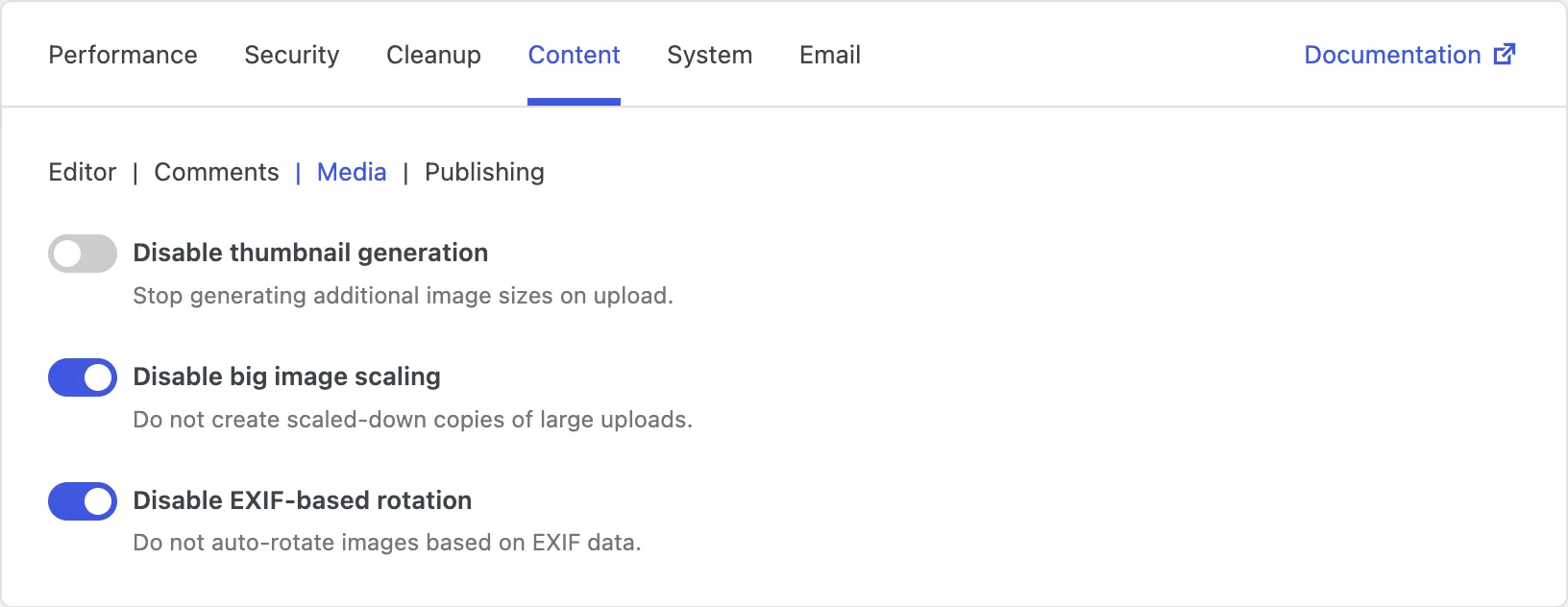
Disable thumbnail generation
When you upload a photo, WordPress usually creates several extra sizes - thumbnail, medium, large, and any sizes your theme or plugins registered. Those copies make it easy to show the right size in different layouts, but they also multiply disk usage. One original can become many files.
Disabling thumbnail generation tells WordPress to stop creating those extra sizes on upload. Uploads finish faster, and you store far fewer image files.
One thing to watch: themes and plugins that expect specific image sizes may fall back to the full original, which can be larger than ideal. This option suits sites that serve originals deliberately, use an external image service, or simply do not need WordPress-generated crops. After enabling it, check a few image-heavy pages.
Disable big image scaling
Very large uploads - for example a photo from a modern phone or camera - can be scaled down automatically by WordPress. The idea is to avoid storing enormous files that browsers do not need. WordPress keeps a scaled copy and may treat that as the main working version.
Disabling big image scaling means WordPress will not create that scaled-down copy. You keep the full-resolution file as uploaded.
That is useful when you need maximum quality for photography, print, or later editing. Be aware that huge originals take more disk space and can be slower to deliver if you display them at full size on the front end. Many sites are better off letting WordPress scale oversized uploads; turn this off only when you have a reason to keep the full file.
Disable EXIF-based rotation
Phones and cameras often store orientation data (EXIF) inside the image file. WordPress can read that data and rotate the picture so it appears upright after upload. Convenient - until the rotation conflicts with how you already edited the file, or until you prefer to control orientation yourself.
Disabling EXIF-based rotation stops WordPress from auto-rotating uploads. The image is stored as it arrived, without an automatic orientation pass.
Use this if auto-rotation has caused sideways or flipped images for your workflow, or if another tool already handles orientation before files reach WordPress.